
Tutorials for TURNA and Blender
How to use TURNA, step by step, from your account to your rendered frames. Then Blender guides written in English, and our tutorials in French.
Using TURNA, step by step
8 steps
From your account to the frames delivered in Blender, in order. Each step opens its help center article, screenshots included.
- Step 1
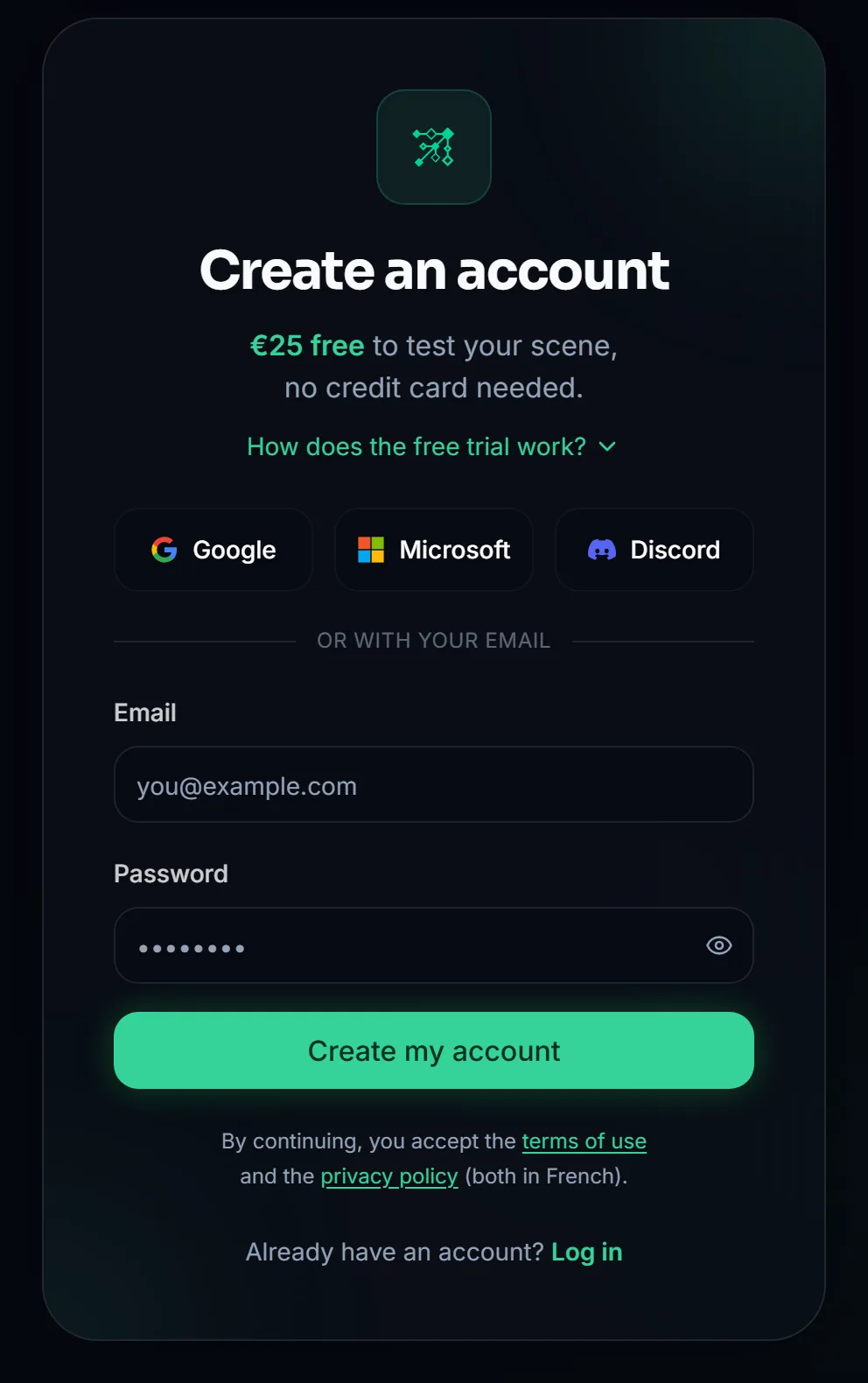
Create an account and get your €25 of free credits
Sign up for free, no credit card. Your €25 arrive once your email address is confirmed and the onboarding questions are answered.
- Step 2
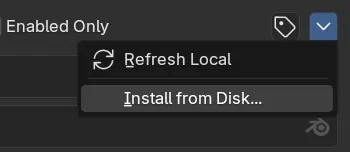
Install the Blender add-on (Windows, Mac, Linux)
The add-on installs in a minute in Blender 4.0 to 5.3, the same way on Windows, Mac and Linux. On Mac with Safari, make sure you keep the .zip.
- Step 3
Link Blender to your account
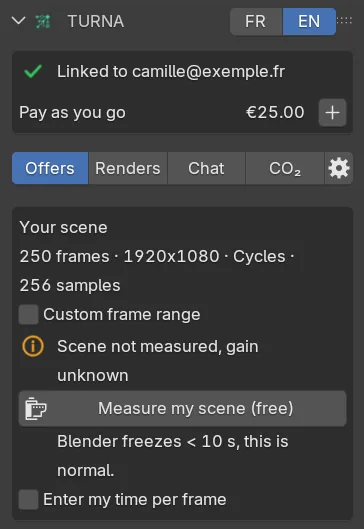
The add-on downloaded from your account links itself. Otherwise, use Magic Login, or paste your key in the TURNA tab.
- Step 4
Start your first render from Blender
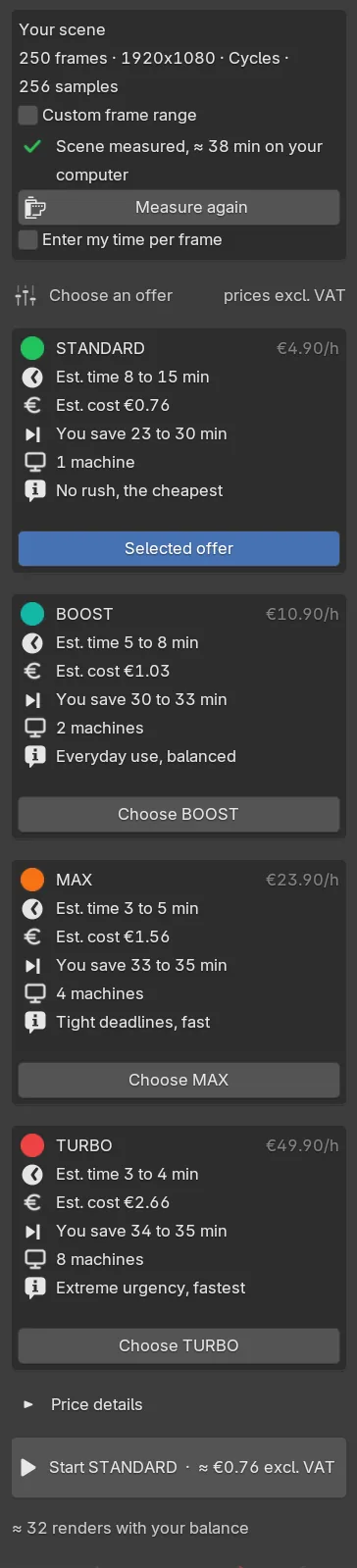
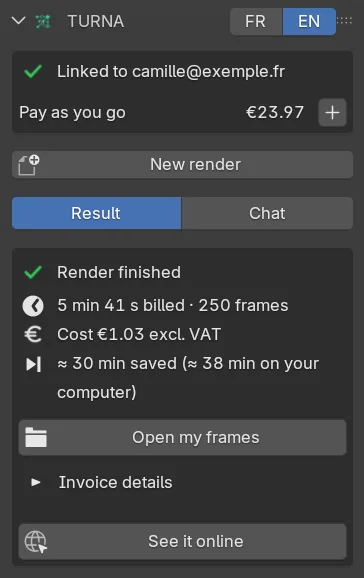
Open the TURNA tab, pick an offer, check the quote and start. Your images then arrive in your scene's output folder.
- Step 5
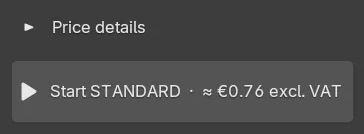
How the price of a render is calculated
You pay the actual render time at the offer's hourly rate: from €4.90 excl. VAT per hour on Standard to €49.90 on Turbo, 2 minutes minimum.
- Step 6
Get your images (Blender, My renders, Drive)
Your images arrive in Blender and stay downloadable in My renders: 30 days without a plan, for as long as you subscribe with Pro or Studio.
- Step 7
Top up your balance
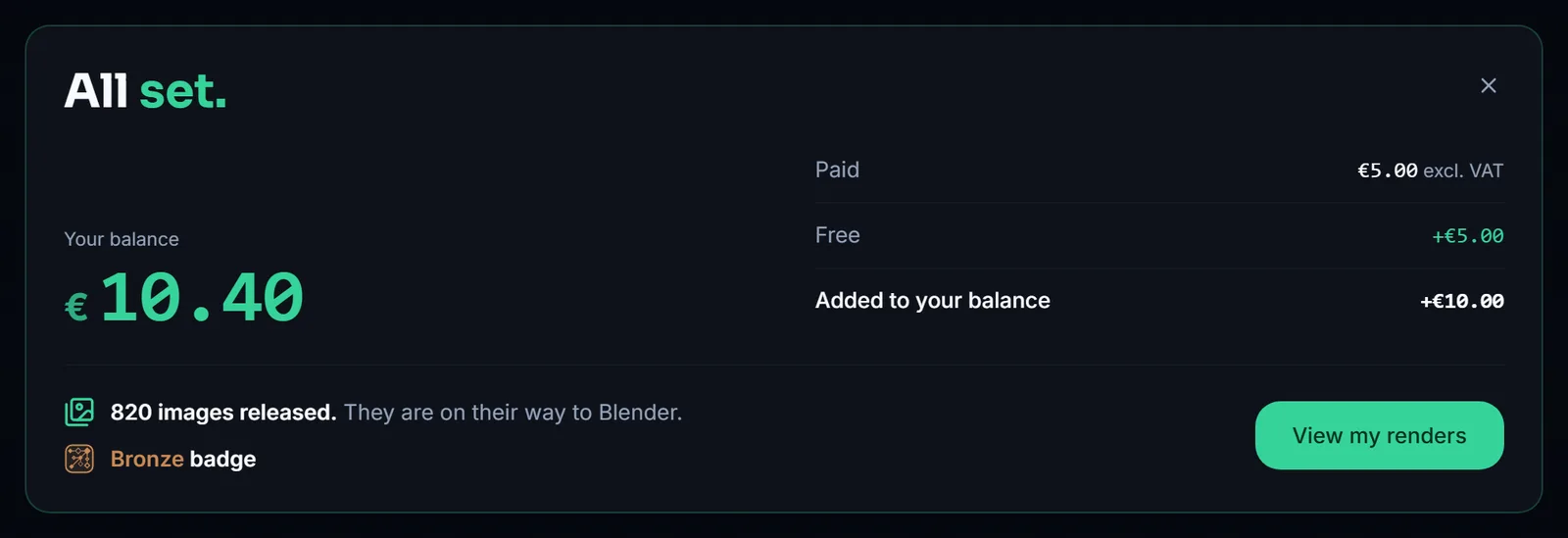
Top up from €5 excl. VAT in Billing or from Blender. Payment goes through Stripe and credits arrive as soon as it is confirmed.
- Step 8
Update the add-on
The add-on updates itself and the new version applies the next time Blender starts. Seeing “Update required”? Here is what to do.

Blender guides
97 guides
Blender is the software TURNA renders, with Cycles and Eevee. These guides are written in English. Six to start with, on getting a frame out of Blender and making it faster.
How to render in Blender: still image and animation
How to render in Blender: choose the engine (Cycles or Eevee), turn on the GPU, Render Image (F12), Render Animation (Ctrl+F12) and save the result.
How to render an animation in Blender (Ctrl+F12), 7 steps
Render to a PNG or EXR sequence, not straight to video. If Blender crashes you lose one frame, not the file. Frame range, output path, Ctrl+F12, MP4.
How to render faster in Blender Cycles: 10 settings
Blender render taking too long? Cut render time without buying a new GPU: ten Cycles settings, from GPU device to Persistent Data, then frames split across machines.
Blender noise threshold: values for stills and animation
0.01 for final renders, 0.02 to 0.05 for a denoised still, 0.1 for previews: the Cycles noise threshold by use case, with Max Samples and the denoiser.
OptiX vs CUDA in Blender: which one to choose for Cycles
OptiX vs CUDA in Blender: set up your NVIDIA card (Preferences, System), what OptiX speeds up, the OptiX denoiser, supported cards, drivers and limits.
Photorealistic rendering in Blender: the method
Photorealistic rendering in Blender: Cycles, HDRI, imperfect PBR materials, bevels, a realistic camera, bounces, denoising, AgX and what gives 3D away.
More tutorials, in French
Our Blender tutorials, and method tutorials for other 3D software and render engines, are written in French only. TURNA renders Blender scenes only, with Cycles and Eevee.